

Introduction
During a recent mobile application penetration test, I encountered a challenging scenario that many mobile security testers face nowadays: extracting APKs from applications installed on devices enrolled in Microsoft Intune. The target application was exclusively available through the Work Profile, and traditional extraction methods failed due to enhanced security restrictions imposed by Intune. This article documents the challenges faced, methods that failed, and the successful approach that ultimately worked, along with an automated solution that I added to the MMSF’s toolbox.
Table of Contents
- Introduction
The Challenge: Intune-Enrolled Devices
The penetration testing scenario involved a corporate Android device enrolled in Microsoft Intune with the following characteristics:
- Work Profile Configuration: The device had a fully configured Work Profile with enterprise applications
- Target Application: A custom enterprise application available only through the Work Profile
- Security Restrictions: Enhanced security policies preventing direct access to Work Profile applications
- No Root Access: The device was not rooted, limiting extraction options
- MDM Policies: Intune policies blocked traditional APK extraction methods
The goal was to extract the APK for static analysis to identify potential security vulnerabilities in the enterprise application.
Why Traditional Methods Fail
User Profile Isolation
Work Profile applications run in a separate user profile (typically user ID 10+), creating a sandboxed environment that isolates business apps from personal data. This isolation makes direct APK extraction challenging because:
- Standard ADB commands cannot access Work Profile app data without proper permissions
- File system access is restricted between user profiles
- Work Profile applications are not visible through standard package listing commands
Enhanced Security Policies
Microsoft Intune enforces additional security layers that complicate APK extraction:
- Data Loss Prevention (DLP): Policies prevent copying of corporate data
- App Protection Policies: Restrict app data access and sharing
- Conditional Access: Limits device access based on compliance status
- Certificate Pinning: Some enterprise apps implement additional security measures
Permission Restrictions
Even with developer options enabled, Work Profile applications maintain strict permission boundaries:
- No direct file system access to Work Profile app directories
- ADB shell commands are restricted when accessing Work Profile data
- Package manager commands require elevated permissions for Work Profile apps
Failed Extraction Attempts
Attempt 1: Direct ADB Extraction
The first approach attempted was using standard ADB commands to extract the APK directly from the Work Profile:
# Failed - Cannot access Work Profile packages directly
adb shell pm list packages --user 11
# Result: Permission denied or limited output

# Failed - Cannot access Work Profile app paths
adb shell pm path com.company.enterprise.app --user 11
# Result: Permission denied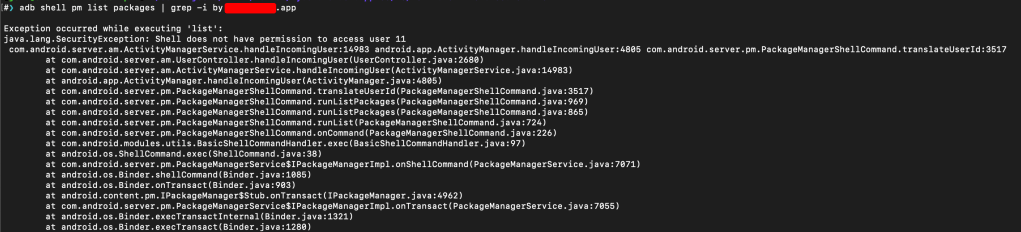
Why it failed: Insufficient permissions to access Work Profile user data without root access.
Attempt 2: Root-based Extraction
Why it failed: Intune enrollment policies prevented rooting the device, and corporate security policies blocked root access.
Attempt 3: Package Manager Dump
Tried using package manager to dump application information:
# Failed - Limited information available
adb shell pm dump com.company.enterprise.app
# Result: Partial information only, no APK path accessible
Why it failed: While some metadata was available, the actual APK file paths were not accessible due to Work Profile restrictions.
Attempt 4: Direct Work Profile APK Pull
Attempted to directly pull APK files from Work Profile using various ADB commands:

# Failed - Direct pull from Work Profile path
adb shell pm path com.company.enterprise.app --user 11
adb pull /data/app/~~[hash]/com.company.enterprise.app-[hash]/base.apk ./
# Result: Permission denied - cannot access Work Profile app data

# Failed - Using run-as for Work Profile apps
adb shell run-as com.company.enterprise.app --user 11
# Result: run-as: unknown package or not debuggable

# Failed - Direct file system access to Work Profile
adb shell ls /data/user/11/com.company.enterprise.app/
# Result: Permission denied - cannot access Work Profile user data
Why it failed: Work Profile maintains strict file system permissions that prevent direct access to app data, even with developer options enabled.
The Working Solution: Install to Personal Profile
After multiple failed attempts, I discovered that the enterprise application could be installed outside the Work Profile by transferring it from the Work Profile to the personal profile. This approach worked because many enterprise applications distributed through Work Profile are actually available as standard APK files that can be installed in personal profiles. The restriction is often in the distribution mechanism rather than the application itself.
The Process
- Identify the Application: Locate the target application within the Work Profile
- Transfer to Personal: Use Work Profile sharing capabilities to move the app to personal profile
- Install as Regular User: Install the application outside the Work Profile environment
- Extract Using Standard Methods: Use conventional APK extraction techniques
Manual Extraction Process
Step 1: Identify the Application Name
First, identify the exact package name of the target application running in Work Profile:
# Find the app name by checking current activity
adb shell dumpsys activity top | grep ACTIVITY
# This will show the currently running activity and its package name
Step 2: Install Application to Personal Profile
Use the pm install-existing command to install the app from Work Profile to personal profile:
# Install the existing app from Work Profile to personal profile (user 0)
adb shell pm install-existing --user 0 com.company.enterprise.app
This command tells the package manager to install an existing application (already installed in Work Profile) to the personal profile (user 0).
Step 3: Extract APK Using Standard Methods
Once installed in personal profile, use standard extraction methods:
# List installed packages to confirm installation
adb shell pm list packages | grep com.company.enterprise.app
# Get APK path
adb shell pm path com.company.enterprise.app

# Extract the APK
adb pull /data/app/com.company.enterprise.app-XXXXX/base.apk ./extracted_app.apk
Automated Solution with MMSF
After discovering the manual process, I started developing a module for MMSF to automate the entire workflow, making it much more efficient for penetration testers.
Step 1: Install and Launch MMSF
git clone https://github.com/St3v3nsS/MMSF.git
cd MMSF
python3 mmsfupdate.py
python3 mmsf.py
Step 2: Use Work Profile Module
mmsf> usemodule workprofile
mmsf (workprofile)> listmodules
Step 3: Automated Transfer and Extraction
MMSF can automate the transfer from Work Profile to personal profile and pulling the APK:
mmsf (workprofile)> usemodule pull_apk
mmsf (workprofile/pull_apk_user_0)> set
mmsf (workprofile/pull_apk_user_0/set)> app com.company.enterprise.app
mmsf (workprofile/pull_apk_user_0/set)> run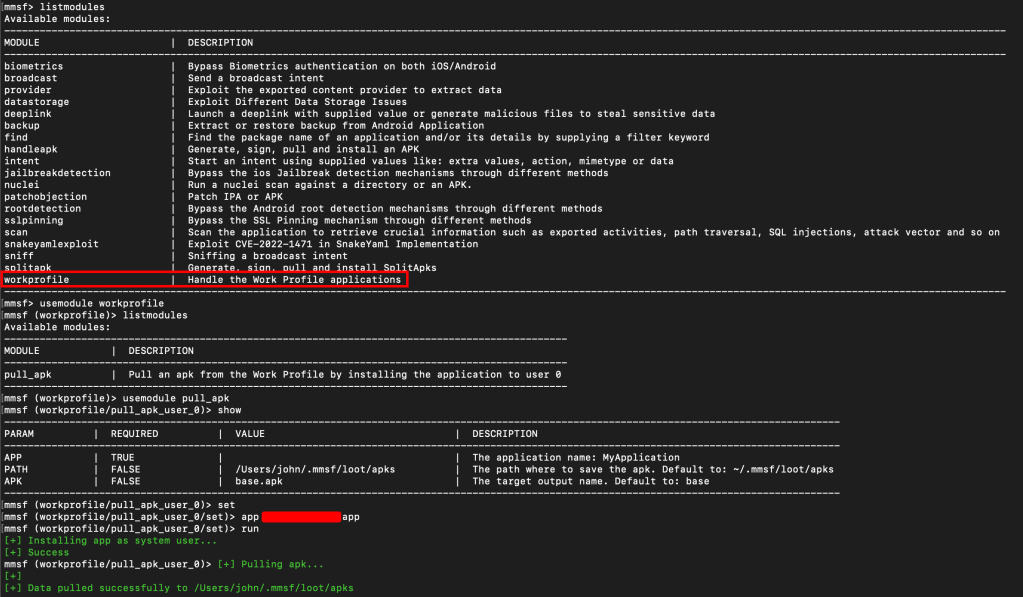
Real-World Considerations
Legal and Ethical Considerations
Always, ensure you have proper authorization to perform penetration testing. Also, Work Profile applications often contain sensitive corporate data and you should always follow your organization’s data handling policies. Finally, document your testing methodology for compliance purposes and also for keeping track of evidences.
Testing Limitations
Mobile Pentesting have never been easy to test. While I have achieved the goal and extracted the APK, using the application outside the Work Profile behave differently, requiring Intune enrollment, thus some enterprise features may not function without MDM enrollment.
This is why you should use this only to focus on static analysis and code-level vulnerabilities, as well as you should consider the impact of missing Work Profile context while documenting the indetified security findings.
Lessons Learned
Key Takeaways
- Work Profile Isolation is Effective: The security boundaries between Work Profile and personal profiles are robust and difficult to bypass
- Application Distribution vs. Restriction: Many “Work Profile only” applications are actually standard APKs with distribution restrictions rather than technical limitations
- Manual Workarounds Exist: Creative approaches like profile-to-profile transfers can bypass extraction restrictions
- Automation is Valuable: Tools like MMSF significantly reduce the time and effort required for these complex extraction processes
- Documentation Matters: Keeping detailed records of failed attempts helps identify successful approaches
Future Considerations
- MDM policies will likely become more restrictive over time
- New Android versions may close current extraction methods, but always there would be some other possibilities
- Enterprise applications may implement additional anti-tampering measures
Conclusion
The challenge of extracting APKs from Work Profile applications on Intune-enrolled devices requires creative solutions. Traditional extraction methods often fail due to enhanced security restrictions, user profile isolation, and MDM policies. However, the approach of transferring applications from Work Profile to personal profile and then extracting them provides a viable workaround.
The key insight is that many enterprise applications are not inherently restricted to Work Profile environments – the restriction is often in the distribution mechanism. By transferring the application to a personal profile, we can bypass these restrictions and perform standard APK extraction.
MMSF’s Work Profile module automates this process, making it more efficient and reliable for penetration testers to pull the APK from the device.
MMSF by St3v3nsS
Massive Mobile Security Framework or MMSF is a mobile framework that combines functionalities from frida, objection, drozer, and many more.
As mobile security continues to evolve, staying adaptable and creative in our approaches will be essential for effective penetration testing. The methods described here represent current solutions, but the ongoing cat-and-mouse game between security measures and testing techniques means that continuous learning and adaptation are necessary.
Remember that successful mobile penetration testing requires not just technical skills, but also proper authorization, ethical considerations, and a thorough understanding of the enterprise environment you’re testing.
 Security Café